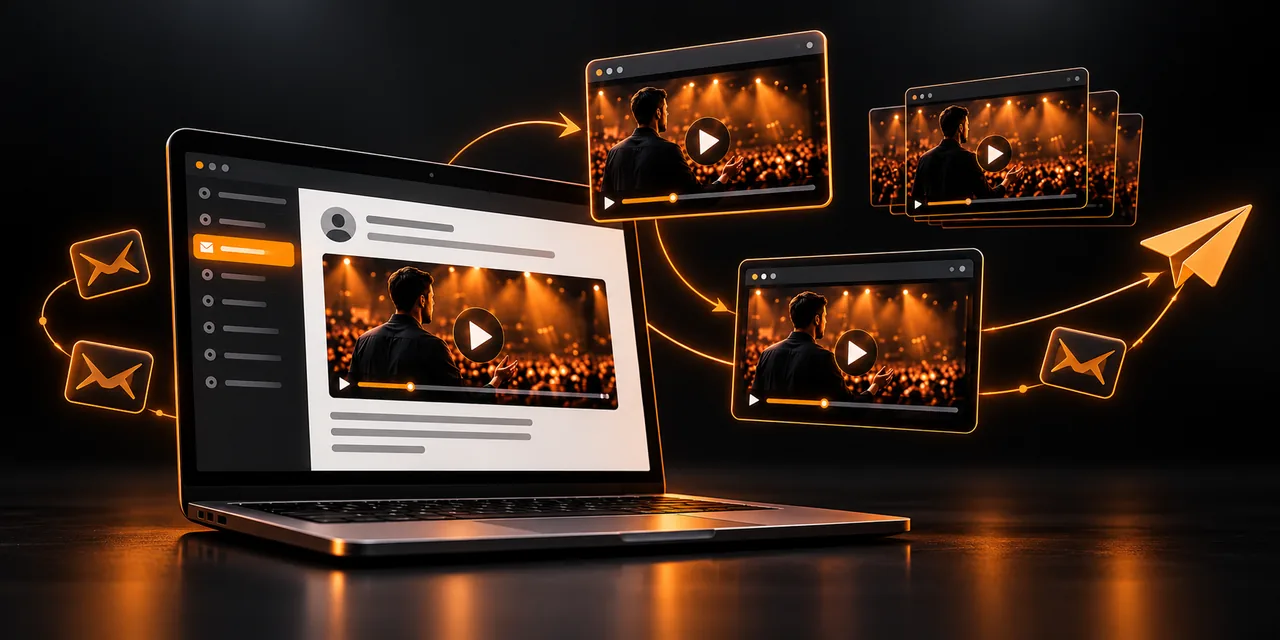
The most reliable way to put video in an email is to insert a thumbnail with a play button that links to a page where the video plays. The reason is simple: most email clients do not play embedded video, so anything that cannot play inside the message is better shown one click away.
This guide compares the three ways to include video in an email — a linked thumbnail, an animated GIF, and embedded HTML5 video — explains what support each one has, how they affect deliverability, and how to set up the send step by step. If you send emails with video and do not know why some recipients see an empty box, the answer is here.
Can you put a video directly in an email?
Technically yes, but in practice it only works for part of your list. Email is not a web page: each client interprets the HTML in its own way and blocks or ignores elements the browser does accept, including video and almost any script.
Some clients, such as Apple Mail on iPhone and Mac, play HTML5 video. Gmail, a large share of Outlook versions, and many corporate clients do not, and they show a fallback image or nothing. Because you do not know which client each recipient uses, betting everything on embedded video leaves out an important part of your audience.
What are the three ways to include video in an email?
There are three approaches, with very different levels of compatibility and of control over what happens after the click.
Linked thumbnail with a play button. A still image from the video, with a play icon overlaid, that takes the viewer to a page where it plays. It works in every client because it is only an image with a link.
Animated GIF. A short looping animation that suggests motion. It plays in almost every client, although it has no sound and weighs more than a normal image.
Embedded HTML5 video. A video tag inside the email. It is the most eye-catching option and the least compatible: it plays in only a few clients and always needs a fallback.
Each one serves a different goal, and the best strategy usually combines the first with a touch of the second.
Why does embedded video fail in most clients?
For security and by design. Email providers filter code that could run actions or load heavy content without the user's permission, and video fits both categories. Playing a file inside the message means downloading it, and that uses data and opens the door to abuse.
Support is also uneven even within the same product family. Desktop versions of Outlook that use the Word engine, for example, ignore the video and show only a replacement image. And even if a client supports it, the person may have automatic content loading turned off.
If you still insert an HTML5 video, always prepare a linked fallback image so nobody sees a gap. In practice, that fallback will become your main version for a large part of the audience.
When does an animated GIF make sense?
A GIF works well as a visual hook: a three- or four-second clip that previews what the person will see when they click. Its limitation is that it has no sound, so what you say must be understood without audio. It is the same principle that explains why captions and accessibility matter when video is watched in silence.
There are three cautions. First, file size: a long or high-resolution GIF slows the email load and can end up cropped by some clients. Second, some desktop Outlook versions show only the first frame, so that first frame must make sense on its own. Third, a GIF does not replace the video: it is there to catch attention, not to tell the full story.
Why is the linked thumbnail the best practice?
It is the only option that works in every client, weighs little, and gives you full control over the experience. The click leads to a landing page with a player hosted on your own video platform, where the video loads quickly, looks good on mobile, and you can measure what each person does. With Atomic Player that page plays the video and records the view; inside the email itself you could not know any of that.
There is also a deliverability advantage: an image with a link is the lightest and least suspicious element you can include. It does not trigger security filters or force the client to load a heavy file, which can happen with embedded video or a very large GIF.
For the thumbnail to convert, choose a frame with a face or a recognizable scene, overlay a large play button, and add the image alt text, which will show if the client blocks images.
Also think about people who view the email with images turned off, which is common in corporate environments. In that case they will only see the alt text, so it should say what the video contains and the backup text link should be visible. Also account for dark mode: a frame with a transparent or very light background can look poor, so use an image with its own background.
One last detail: mentioning the video in the subject line helps the recipient know what to expect, as long as the promise matches what you offer. A misleading subject line hurts your sending reputation.
How do you build an email with video step by step?
1. Host the video in your own player and create a landing page with the video as the focus and a single clear action.
2. Export a representative frame and overlay a play button; save the image in a light format at a width of about 600 pixels.
3. Insert the image in the email, link it to the landing page, and write descriptive alt text.
4. Add a line above that promises what they will see, and a text link with the same address below, in case the image does not load.
5. Tag the link with campaign parameters so you can tell which send each view came from.
6. Test in Gmail, Outlook, and on a phone before sending to the whole list.
Also take care of the email close: a strong call-to-action button next to the thumbnail or on the landing page keeps the click from ending in a view with no next step.
How do you measure whether the email video works?
With a linked thumbnail, the click is the first signal, but what matters happens afterward. The play rate on the landing page tells you how many people who arrive actually press play, and video progress shows how much they watch.
If you also tie each click to its source, you can see the video's revenue attribution and know which sends generate sales, not just visits. That is information neither a GIF nor a video embedded in the email can give you.
Which approach should you choose for your case?
The comparison shows why the linked thumbnail wins in most situations.
Approach
Support and file size
Measurement and recommended use
Linked thumbnail
Works in every client and weighs very little
Full measurement on the landing page; it is the primary option
Animated GIF
Works in almost all clients, with some Outlook exceptions; moderate or high file size, no sound
Measures only the click; use it as a visual boost for the thumbnail
Embedded HTML5 video
Only in some clients, such as Apple Mail; high file size and risk of blocking
Almost no measurement; always requires a fallback image
If you have to choose only one, choose the linked thumbnail. Add a short GIF only when you want to reinforce the sense of motion without sacrificing compatibility.
Frequently asked questions
Can you insert a video in an email?
You can insert one with an HTML5 video tag, but most email clients will not play it. The most reliable approach is a thumbnail with a play button that links to a page where the video plays.
Which email clients play embedded video?
Only a few, such as Apple Mail on iPhone and Mac. Gmail, many versions of Outlook, and numerous corporate clients block it or show a fallback image, so you should always have a plan B.
Is a GIF better than a linked thumbnail?
The linked thumbnail works in every client and leads to the full video with sound. The GIF adds motion, but it has no audio and weighs more; use it as a boost, not as a substitute.
Does a video in email affect deliverability?
It can. Heavy files and unusual code raise the risk of blocking or spam filters. A light image with a link is the safest element.
How do I increase clicks on an email with video?
Use a thumbnail with a recognizable face or scene, a clear play button, a line that promises the content, and a backup text link. Then measure playback on the landing page.
Get video into the inbox without surprises
Video in email works when you accept its limits: email is not a player, but it is an excellent bridge to one. A thumbnail that links to a well-built page gives you compatibility, deliverability, and real data on what happens next.
Try Atomic Player and host your videos in a player built to receive traffic from your emails.
If you read nothing else
- Most email clients do not play embedded video, so a linked thumbnail is the reliable default.
- Animated GIFs add motion without sound and can be heavy; Outlook may show only the first frame.
- HTML5 video works in a few clients such as Apple Mail and always needs a fallback image.
- A landing page with Atomic Player measures playback in a way the email itself cannot.
Atomicat Team
The team behind AtomicPlayer — writing about video conversion, retention, and the infrastructure that makes both measurable.