Video player controls affect conversion
When a visitor lands on your sales page and encounters a video, the first thing they see is not the content. It is the video player and its controls. The progress bar, pause button, volume control, fullscreen button, and total duration indicator are elements the viewer processes unconsciously in the first seconds. And those elements influence their decision to watch the video or move on.
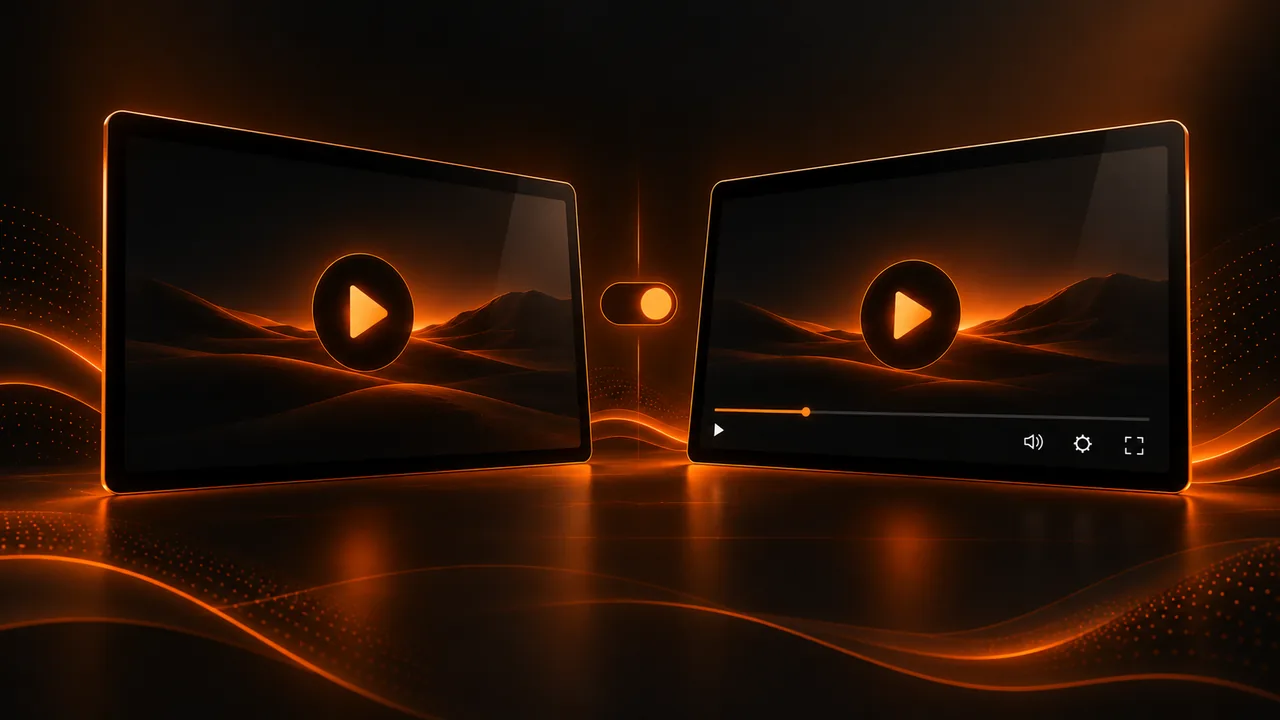
In a VSL context, every video player control is a design decision that can help or hurt your conversion. Showing the total duration of a 45-minute video can scare a viewer who only intended a quick look. Showing the progress bar lets the viewer jump straight to the end, skipping your entire sales argument. But hiding everything can frustrate viewers who want to know where they are in the video.
Arguments for hiding controls on your VSL
The main reason to hide the progress bar and other controls on a VSL is to keep the viewer in the narrative flow. If the viewer does not know how long the video is, they cannot decide it is "too long" before giving it a chance. If they cannot skip ahead, they must watch each section in order, which ensures they receive your full argument before reaching the offer.
Many interactive video and high-converting VSL creators use autoplay without visible controls during the first minutes. The video starts automatically (with subtitles if audio is muted by default) and controls appear only when the viewer interacts with the player. This technique reduces immediate abandonment because the viewer enters the content without having to actively decide to press play.
Arguments for showing controls
Not every context justifies hiding controls. In educational videos, tutorials, and training content, the viewer needs to pause, rewind, and skip to consume content at their own pace. Hiding controls in these cases creates a frustrating experience that can make the viewer abandon the video and look for the information elsewhere.
Also, hiding controls can be perceived as a manipulative tactic, especially among sophisticated audiences who know digital marketing techniques. If your audience is made up of professionals who value transparency, showing video player controls may be the right decision. The trust you gain can offset viewers who skip ahead.
Autoplay video: pros and cons
Autoplay video is the setting that makes your video start playing automatically when the visitor loads the page. On a VSL, autoplay removes the play-click barrier, which can cost 10 to 20 percent of potential viewers. However, autoplay with sound is blocked by most browsers, so your video will start muted unless the user interacts with the page.
The practical solution is autoplay video with subtitles. The video starts playing silently with visible subtitles, and the viewer turns on sound when they are hooked on the content. This technique combines the best of both worlds: the automatic start of autoplay and the ability to consume content without sound in environments where audio is not appropriate.
Interactive elements inside the video
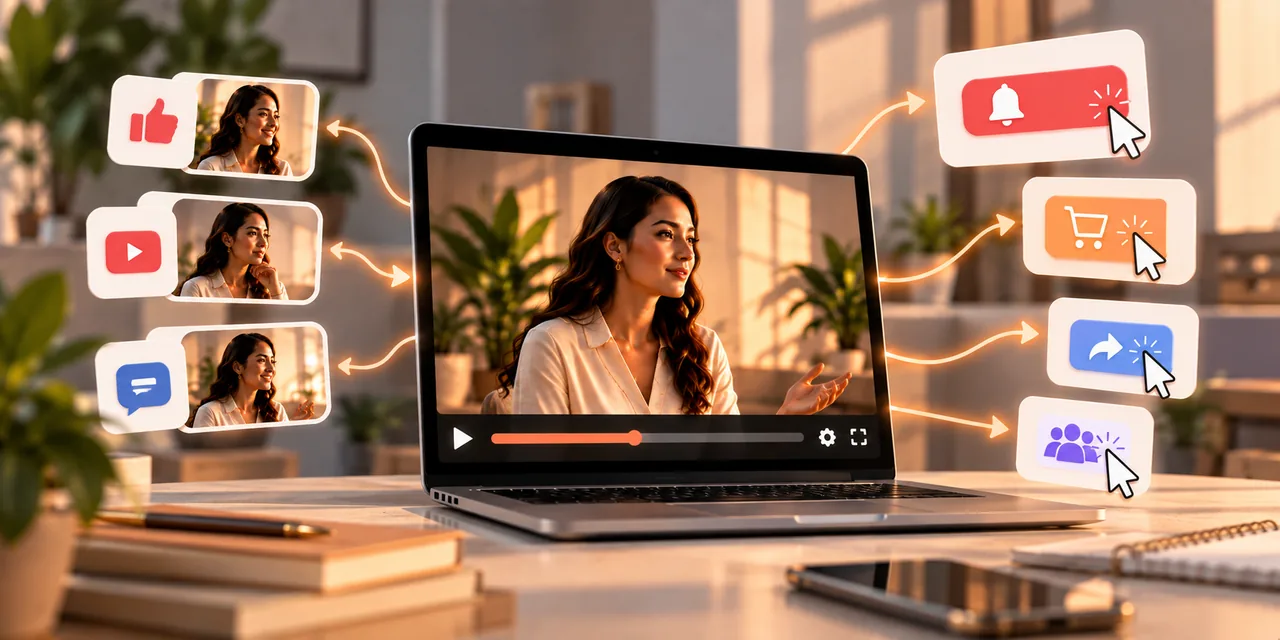
Interactive video takes controls a step further. Instead of limiting itself to play, pause, and skip, interactive video can include buy buttons that appear at specific moments, overlaid capture forms, polls, navigable chapters, and clickable calls to action. These elements transform video from a passive format into an active one where the viewer participates in the experience.
On your sales page built with Atomicat, interactive video can include a "Buy now" button that appears exactly when you present the offer. If the viewer clicks, they land directly on AtomicPay checkout, closing the sales cycle without leaving the video flow. This integration between content and commerce is what makes interactive video so powerful for conversion.
The psychology behind hiding duration
When a viewer sees that a video is 45 minutes long, their first thought is "I don't have time for this." This reaction is automatic and unconscious, and it happens before the content has had a chance to prove its value. By hiding the total duration, you remove that premature judgment and give your content the opportunity to prove its value on its own. If the content is good, the viewer will stay regardless of length. If the content is not good, showing or hiding duration, they will leave anyway.
However, there is an important nuance. Hiding duration works when the viewer is in exploratory mode: they arrived at your page, are curious, and are willing to give it a chance. It works less well when the viewer is in planned mode: they have 10 free minutes and want to know if they can watch your video in that time. For this second case, an intermediate solution is to show duration only when the viewer hovers over the video player or interacts with controls, keeping it hidden by default.
Controls and the mobile experience
On mobile, video player controls have an even greater impact than on desktop. The screen is small, fingers are imprecise, and any unnecessary control takes up valuable video space. A mobile-optimized player should have large, spaced controls with generous tap areas that avoid accidental clicks. The progress bar, if shown, should be wide enough for the user to drag it with their finger without frustration.
In a mobile VSL context, consider hiding all controls except volume and fullscreen during playback. If the viewer needs to pause, they can tap the screen to reveal controls. If they need to skip ahead, they can double-tap the right side of the interactive video (a gesture most smartphone users already know from YouTube and other platforms). These gesture conventions reduce the need for permanently visible controls.
The progress bar as an engagement tool
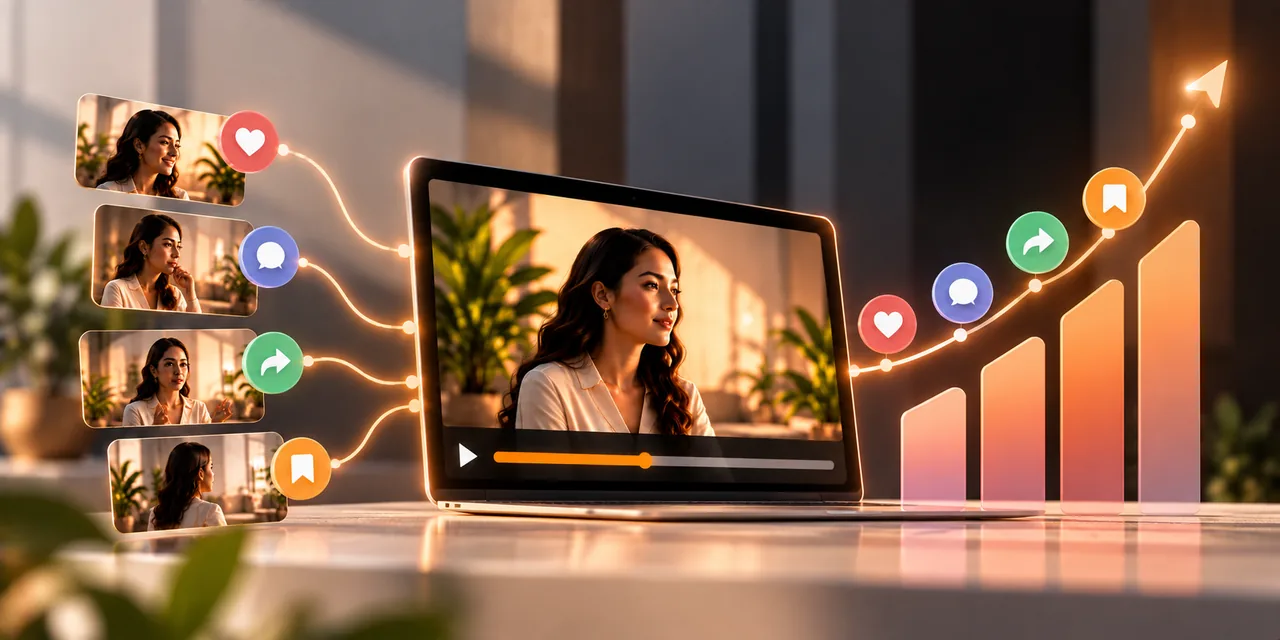
A creative alternative to the show-or-hide progress bar dilemma is to use it as an engagement tool in your VSL. Instead of a bar showing elapsed time, use a bar showing progress toward the "reveal moment" or the "offer." This technique builds anticipation: the viewer sees they are approaching the key moment and stays so they do not miss it. It is a way to gamify the viewing experience that works especially well with younger audiences.
Another option is a segmented progress bar that divides the video into visible sections (Problem, Solution, Success Story, Offer) and shows the viewer which section they are in. This transparency reduces anxiety for viewers who do not know how much is left and gives them a reason to keep watching: they can see the "Offer" section is coming and want to see it before deciding. This advanced video player configuration requires a player with customization capabilities that generic players do not offer, which reinforces the advantage of using a professional player for your interactive video.
Remember that the decision about controls is not permanent. You can (and should) change it based on the viewing data you collect. If you find that hiding the progress bar on your autoplay video increases retention but reduces viewer satisfaction (measured by surveys or comments), you can opt for an intermediate solution that balances both metrics.
Conclusion: controls are a strategic decision, not an aesthetic one
Showing or hiding your video player controls is not a design preference. It is a strategic decision that should be based on your content type, audience, and conversion goals. For direct-sales VSLs, hiding controls and using autoplay video with subtitles usually delivers the best results. For educational and training content, showing full controls is the right choice. For interactive video, native controls are replaced by interactive elements that guide the experience. Whatever you decide, make sure it is backed by viewing data, not intuition.
If you read nothing else
- Viewers process controls before content — every design decision impacts conversion.
- Hiding controls preserves narrative flow; showing them builds trust in educational content.
- Autoplay with subtitles combines automatic start with silent viewing.
- Use viewing data to decide — controls are strategy, not aesthetics.
Atomicat Team
The team behind AtomicPlayer — writing about video conversion, retention, and the infrastructure that makes both measurable.